What RADIUS changes
MikroTik remains responsible for terminating PPPoE or serving the Hotspot. RADIUS becomes the authority that accepts or rejects credentials and returns subscriber policy such as rate limits. Accounting messages then report session start, interim usage and stop information back to the server.
Information to prepare
- The MikroTik source IP that the RADIUS server will actually see.
- A strong, unique shared secret for that NAS.
- Whether the service is PPPoE, Hotspot, or both.
- Reachability for authentication/accounting and, if needed, CoA/disconnect.
- A controlled test subscriber and a rollback method.
1. Register the MikroTik as a NAS
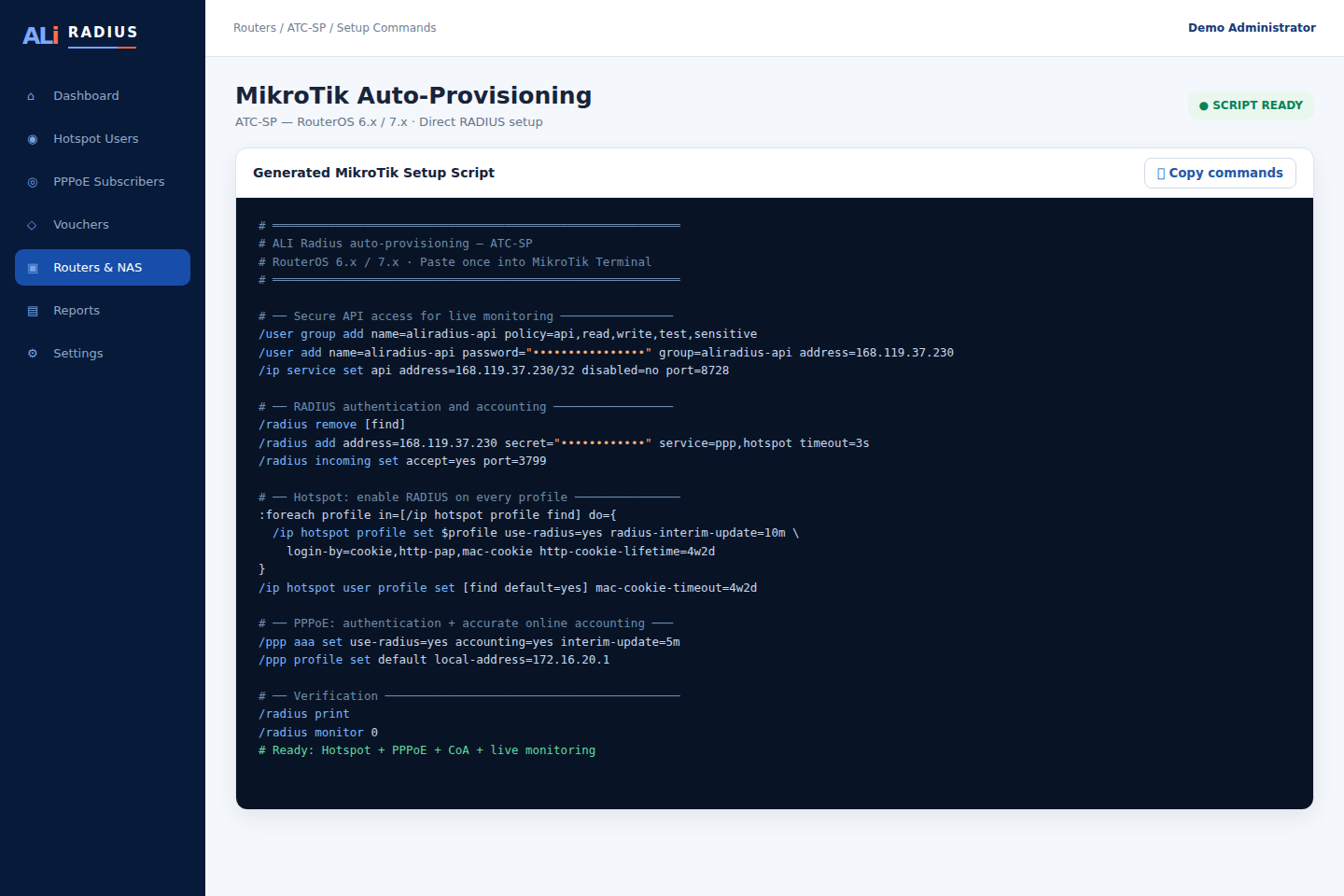
The NAS record must match the packet source address. On routed or VPN-connected networks this may differ from the management address used for RouterOS API access. Keep the RADIUS shared secret separate from the RouterOS administrator password.
2. Configure RouterOS services
Enable RADIUS only for the intended services. Configure authentication and accounting against the correct server address, enable interim accounting updates, and set an appropriate timeout. Avoid applying unrelated firewall, route or service changes in the same maintenance action.
3. Test authentication and policy
- Create one test package and subscriber.
- Confirm Access-Request reaches the expected tenant and NAS.
- Verify the Access-Accept returns the intended speed/profile.
- Confirm the session becomes visible after login.
- Check interim usage and a clean accounting stop.
- Test disconnect/CoA separately if you depend on it.
Common causes of RADIUS timeout
- NAS source IP does not match its registered address.
- Shared secret differs between MikroTik and RADIUS.
- UDP authentication/accounting traffic is blocked.
- VPN or static routing sends replies through the wrong path.
- The subscriber belongs to a different tenant or router.
- RouterOS is pointing to the wrong server address.
Operate it from one panel
AliRadius connects NAS management with PPPoE billing, Hotspot vouchers, sessions, branch revenue and generated MikroTik provisioning. If you are replacing an existing platform, use a staged migration process.