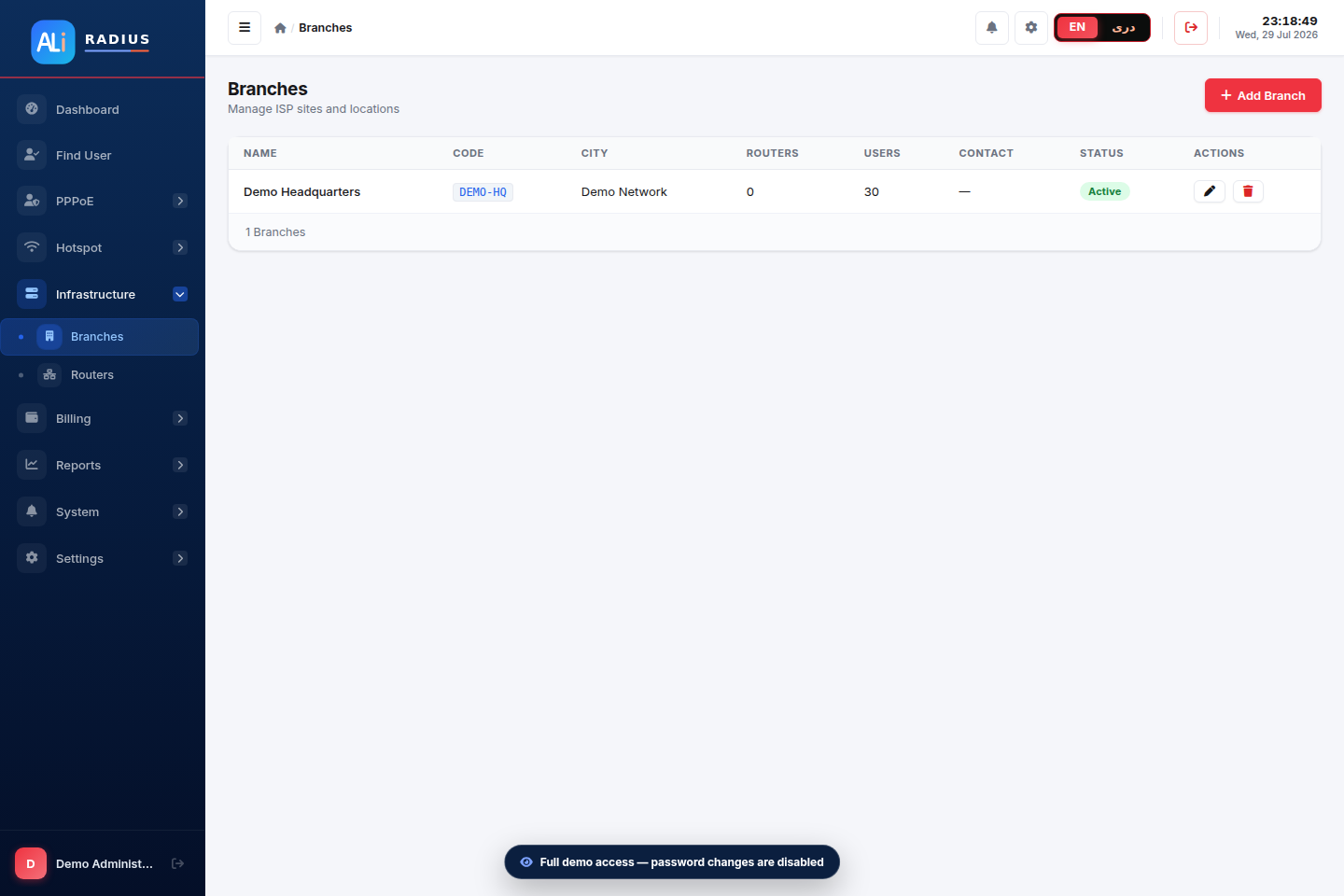
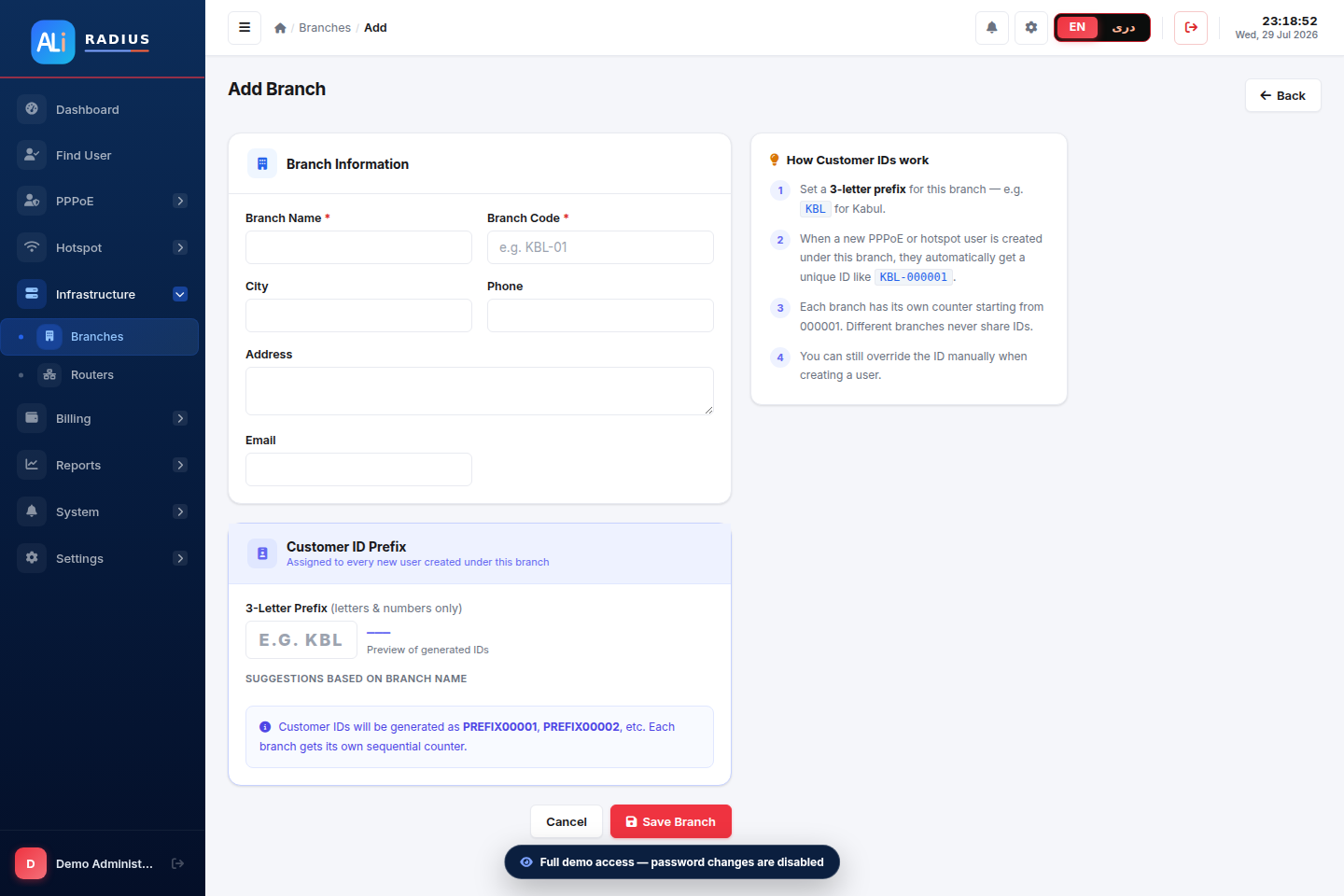
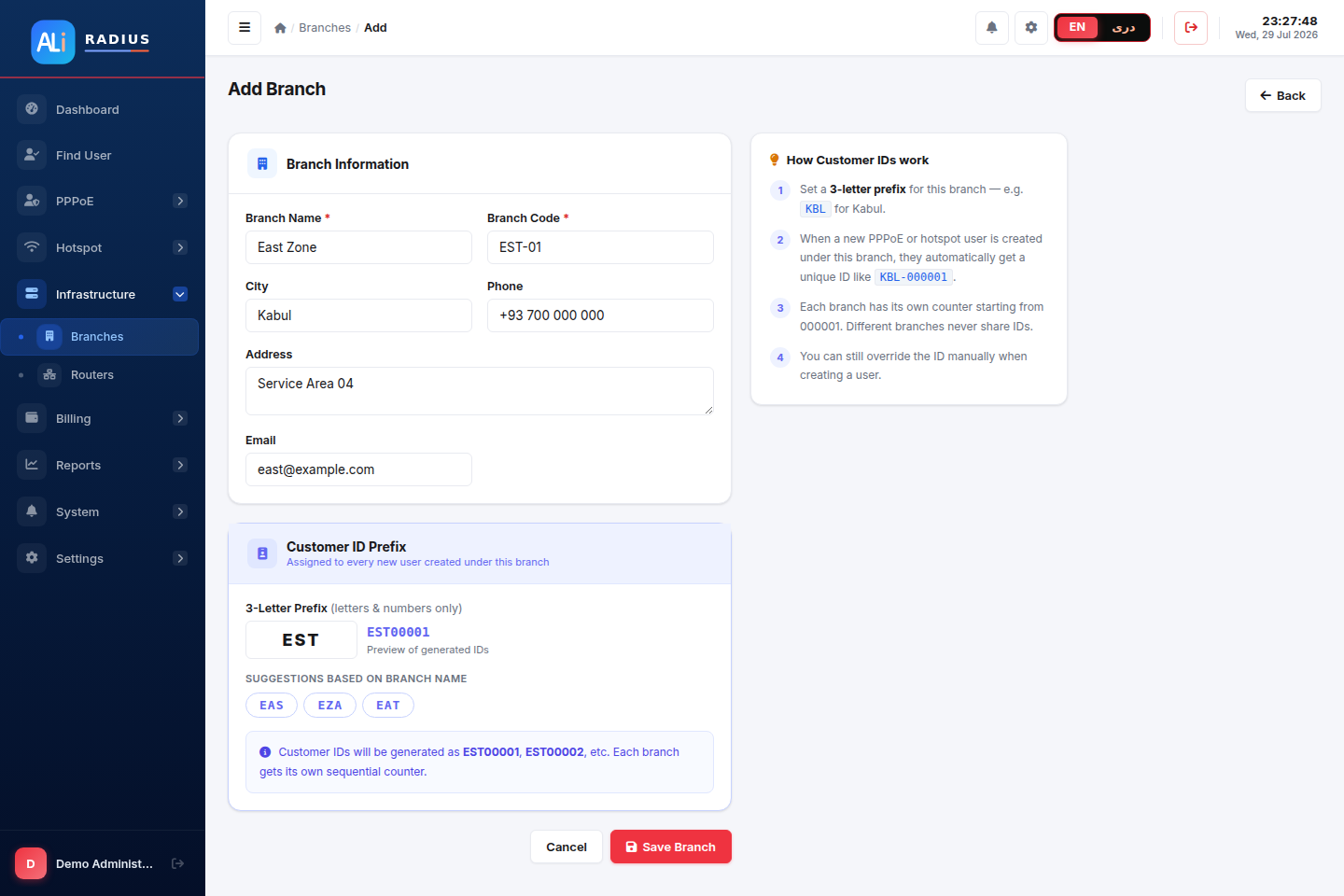
Create a branch
Branches connect users, staff, routers and revenue to the correct location.
Follow this guide from an empty account to a working MikroTik RADIUS setup for PPPoE or Hotspot.
Branches, categories and MikroTik are used by both services. Select your service to highlight the relevant instructions.
Branches connect users, staff, routers and revenue to the correct location.
Categories help organize subscribers without changing their internet service.
Define speed, price, validity and network policy before adding users.
Open PPPoE → Profiles. Enter the plan name, download/upload speed, price, validity and optional IP pool.
Open Hotspot → Packages. Enter the package name, speed, price, validity, quota and shared-user limit.
Register the router as a NAS and let AliRadius generate the correct configuration.
Create users only after branch, plan and router setup are ready.
Open PPPoE → PPPoE Users → Add User. Select branch, category and profile; enter username, password, customer details and expiry.
Open Hotspot → Hotspot Users → Add User. Select branch, category, package and router; enter credentials and optional MAC binding.
Verify one test subscriber before moving the full network.
Share your service type and router count. An AliRadius expert can guide the first branch, plan, router and test user.
Message an expertAlready have users on MikroTik or another billing platform? Use staged expert migration instead of recreating everything manually.
View migration processKeep this guide open beside the AliRadius panel and complete one chapter at a time.